In this section, we provide guides and references to use the Google Pub/Sub connector.Documentation Index
Fetch the complete documentation index at: https://openmetadata-codex-audit-docs-codebase-alignment.mintlify.app/llms.txt
Use this file to discover all available pages before exploring further.
Supported Authentication Types:
- GCP Credentials — Google Cloud service account authentication using a service account key file or Application Default Credentials.
Requirements
The Google Cloud service account used for ingestion needs the following IAM permissions:Metadata Ingestion
| Permission | Purpose |
|---|---|
pubsub.topics.list | List topics in the project |
pubsub.subscriptions.list | List subscriptions (for dead letter detection and subscription metadata) |
pubsub.subscriptions.get | Read individual subscription details |
Schema Registry (when schemaRegistryEnabled is true)
| Permission | Purpose |
|---|---|
pubsub.schemas.list | List schemas in the Schema Registry |
pubsub.schemas.get | Read schema definitions (Avro, Protocol Buffer) |
roles/pubsub.viewer grants all of the above permissions and is the recommended role for OpenMetadata ingestion.
Metadata Ingestion
Connection Details
Connection Details
- GCP Credentials: GCP service account credentials for authenticating with Pub/Sub. Provide a service account key in JSON format, or use Application Default Credentials when running on GCP infrastructure (GCE, GKE, Cloud Run). See Creating a GCP Service Account for details.
- Project ID (optional): GCP Project ID where Pub/Sub topics are located. If not specified, the project ID is read from the service account credentials.
-
Host and Port (optional): Pub/Sub API endpoint URL. Defaults to
pubsub.googleapis.com. When connecting to a local Pub/Sub emulator, set this to the emulator address (e.g.,localhost:8085) and enable Use Emulator. -
Use Emulator (optional): Connect to a local Pub/Sub emulator instead of the production service. Useful for development and testing. When enabled,
hostPortmust be set to the emulator address (not the defaultpubsub.googleapis.com). -
Enable Schema Registry (optional, default:
true): Fetch topic schemas from the Pub/Sub Schema Registry. Supports Avro and Protocol Buffer schema types. Disable if your project does not use the Schema Registry. -
Include Subscriptions (optional, default:
true): Include subscription metadata for each topic. When enabled, subscription names, acknowledgment deadlines, retention durations, push endpoints, dead letter policies, and BigQuery export configurations are captured.
-
Include Dead Letter Topics (optional, default:
false): Include dead letter topics in metadata extraction. By default, dead letter topics are detected via subscription policies and excluded to keep the topic list focused on primary business topics. -
Topic Filter Pattern (optional): Regex pattern to selectively include or exclude topics by name. Use
includesfor an allow-list andexcludesfor a deny-list. Example: exclude internal topics withexcludes: ["^_.*"].
Test the Connection
Once the credentials have been added, click on Test Connection and Save the changes.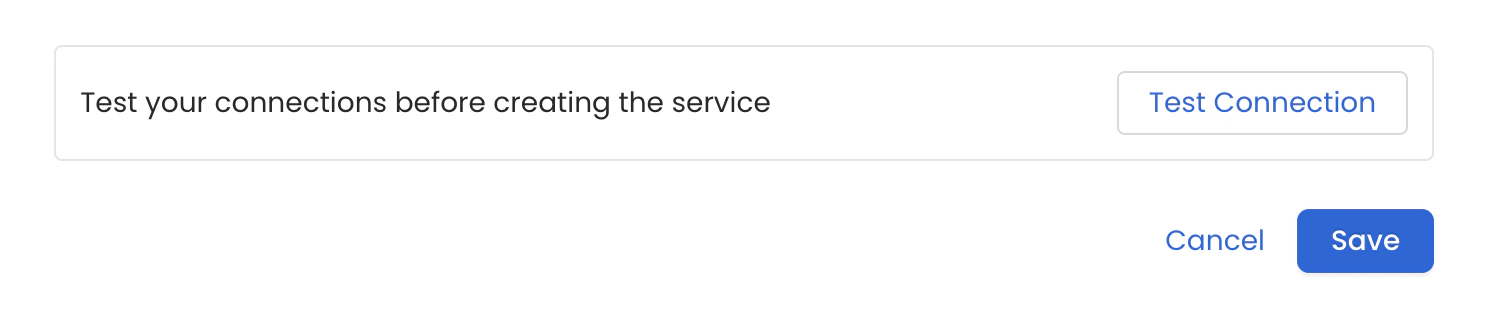
Configure Metadata Ingestion
In this step we will configure the metadata ingestion pipeline,
Please follow the instructions below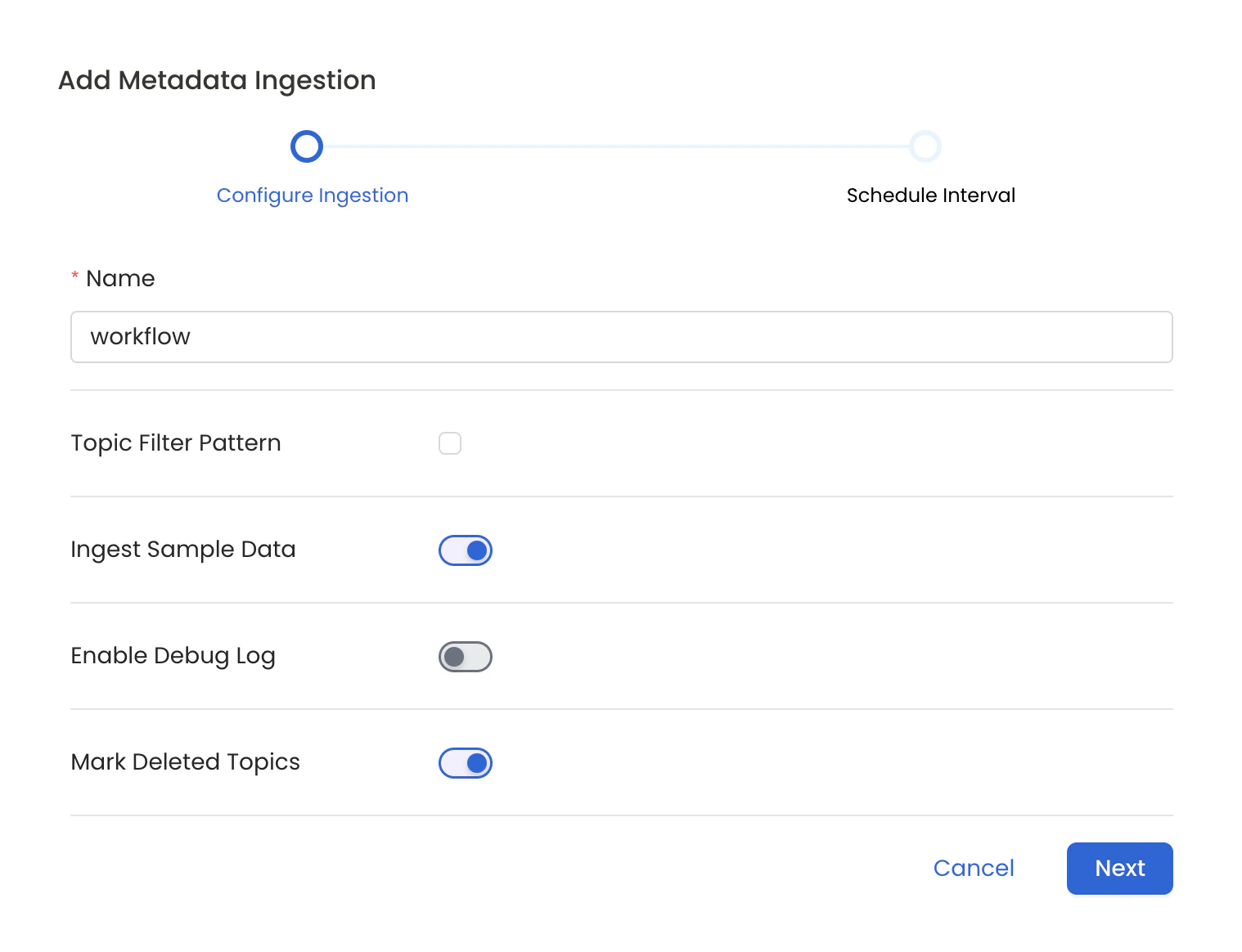
Metadata Ingestion Options
- Name: This field refers to the name of ingestion pipeline, you can customize the name or use the generated name.
- Topic Filter Pattern (Optional): Use it to control whether to include topics as part of metadata ingestion.
- Include: Explicitly include topics by adding a list of comma-separated regular expressions to the ‘Include’ field. OpenMetadata will include all topics with names matching one or more of the supplied regular expressions. All other topics will be excluded.
- Exclude: Explicitly exclude topics by adding a list of comma-separated regular expressions to the ‘Exclude’ field. OpenMetadata will exclude all topics with names matching one or more of the supplied regular expressions. All other topics will be included.
- Ingest Sample Data (toggle): Set the ‘Ingest Sample Data’ toggle to ingest sample data from the topics.
- Enable Debug Log (toggle): Set the ‘Enable Debug Log’ toggle to set the default log level to debug.
- Mark Deleted Topics (toggle): Set the ‘Mark Deleted Topics’ toggle to flag topics as soft-deleted if they are not present anymore in the source system.
- Extract Consumer Groups (toggle): Set the ‘Extract Consumer Groups’ toggle to extract active consumer group metadata for each topic, including group state, members, and partition assignments.
Schedule the Ingestion and Deploy
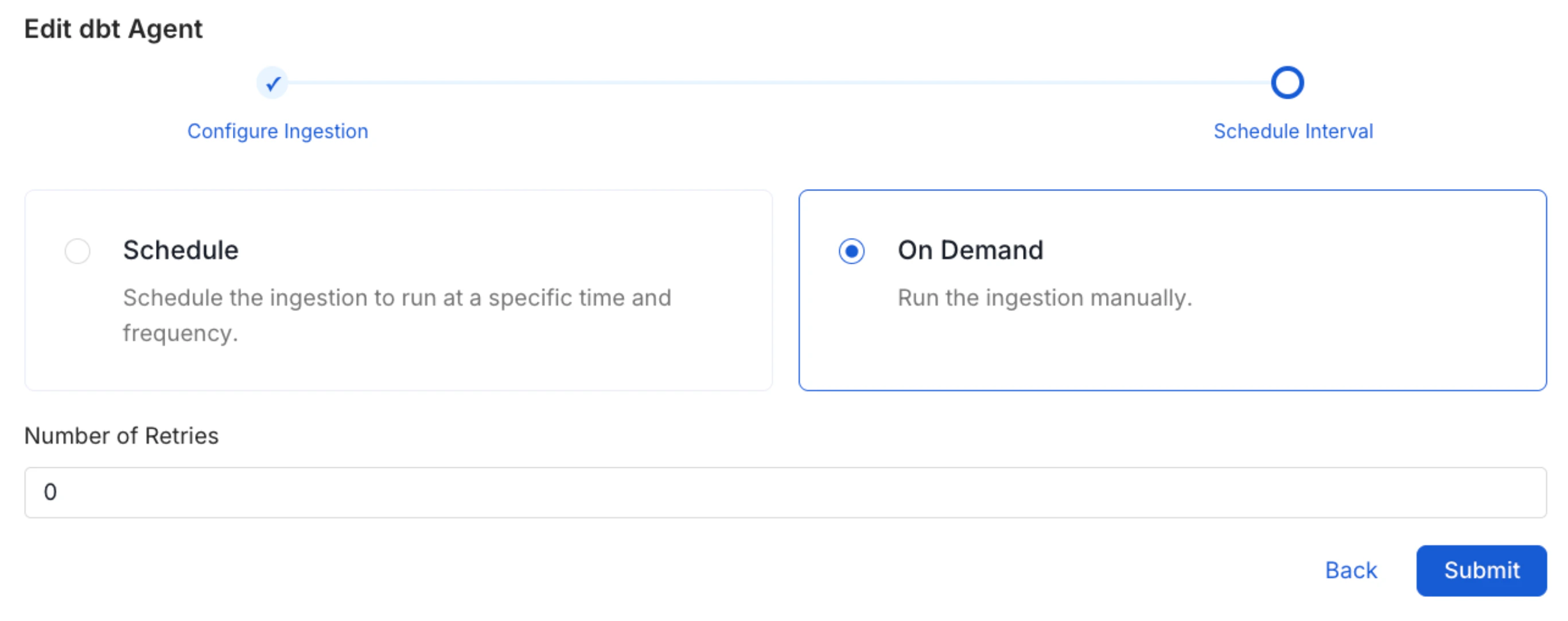
Scheduling can be set up at an hourly, daily, weekly, or manual cadence. The
timezone is in UTC. Select a Start Date to schedule for ingestion. It is
optional to add an End Date.Review your configuration settings. If they match what you intended,
click Deploy to create the service and schedule metadata ingestion.If something doesn’t look right, click the Back button to return to the
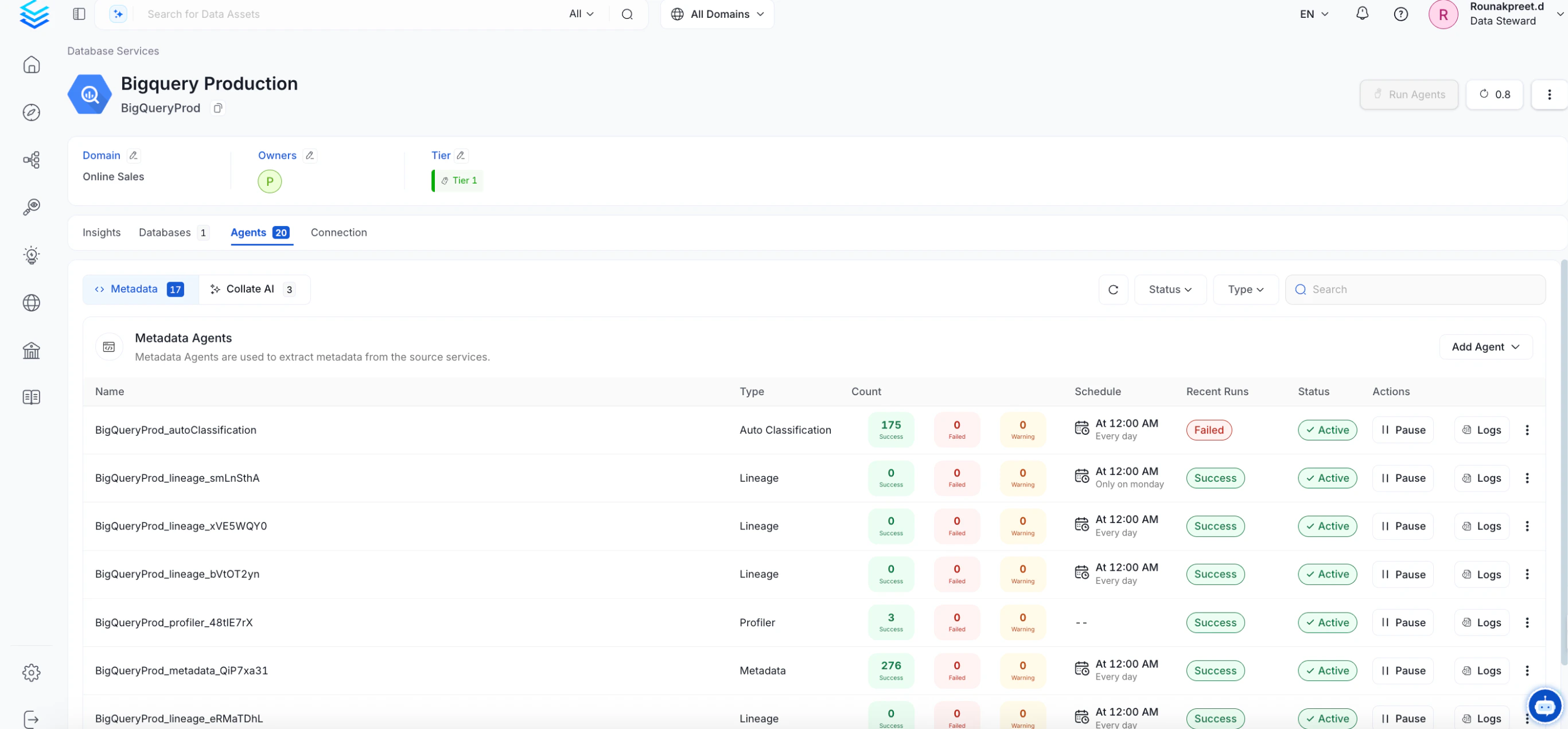
appropriate step and change the settings as needed.After configuring the workflow, you can click on Deploy to create the
pipeline.