Documentation Index
Fetch the complete documentation index at: https://openmetadata-codex-audit-docs-codebase-alignment.mintlify.app/llms.txt
Use this file to discover all available pages before exploring further.
Using Advanced Search
Advanced search gives you precise control over data discovery by letting you build multi-condition queries through a visual query builder—no syntax knowledge needed. Instead of scrolling through all assets or relying on keyword search, filter by ownership, classification, location, and structure at once, then combine conditions with AND/OR logic to match exactly the assets you’re looking for.How to Use Advanced Search
To use the advanced search for building complex queries, perform the following steps:-
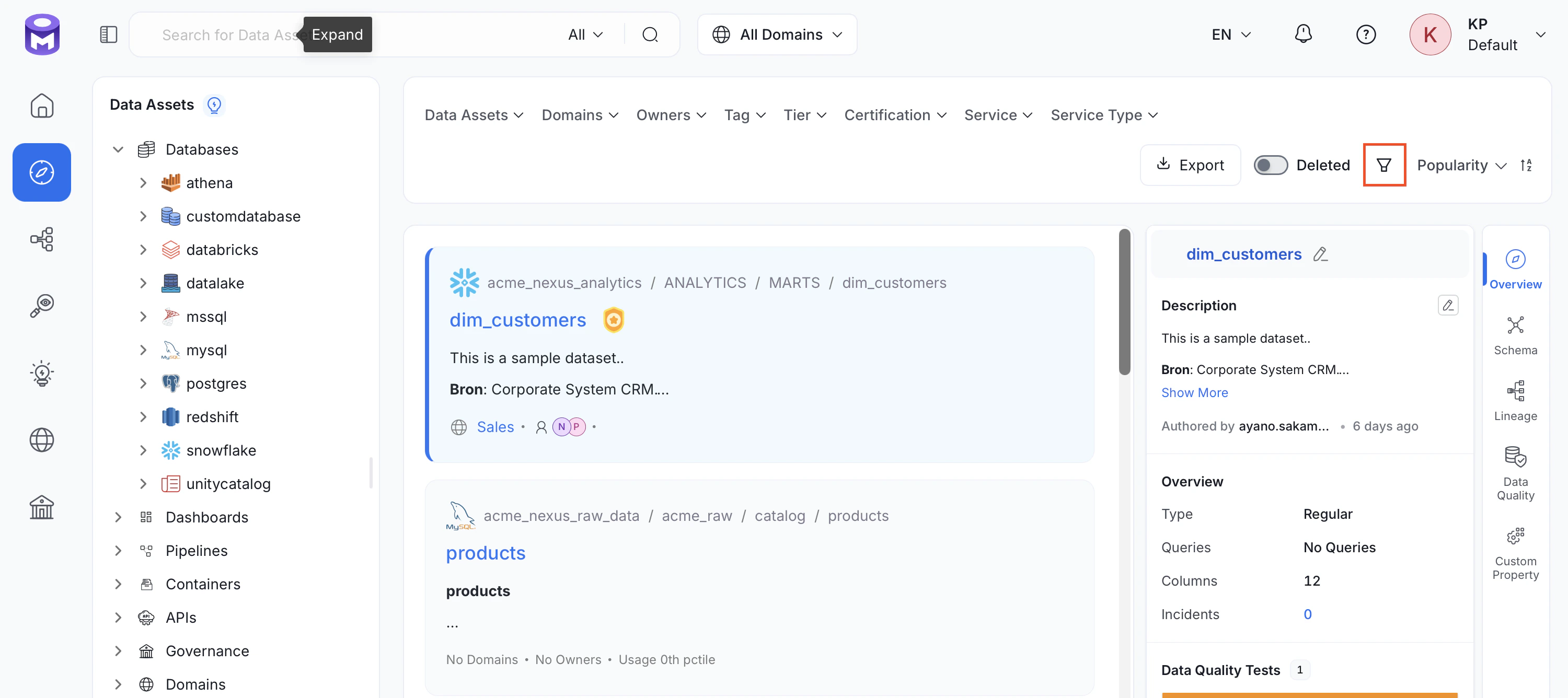
On the left navigation pane, select Explore and then click the Advanced Search icon.
-
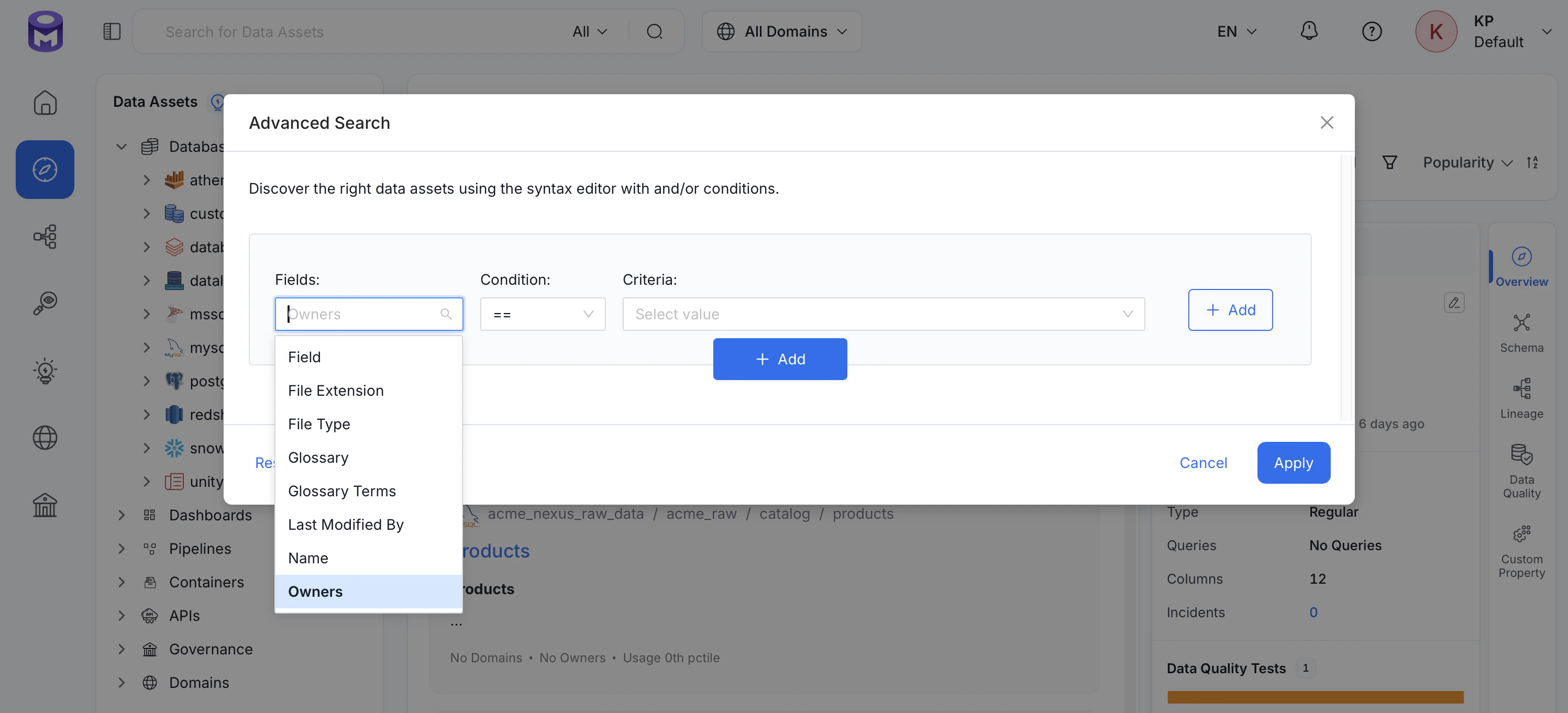
In the query builder, do the following to add one or more conditions:
- In the Field drop-down, select what to search by such as Deleted, Owner, Tags, Tier, Service, Database, Database Schema, and others.
- Select an Operator for your query. This defines how search field matches. These are some common operators, but they vary based on the selected Field: Equal to (==), Not equal to (!=), Any in, Not in, Contains, and Not contain.
- In the Criteria field, enter the value to match against.
-
(Optional) Click Add to add multiple conditions and group the conditions together. Repeat step 2 for each condition.
- Select AND to match assets that meet all conditions, or OR to match assets that meet at least one.
- Click Apply.
Example
To find all database assets that don’t include “dim” in their name and are owned by either “admin” or “admin user”, follow these steps:-
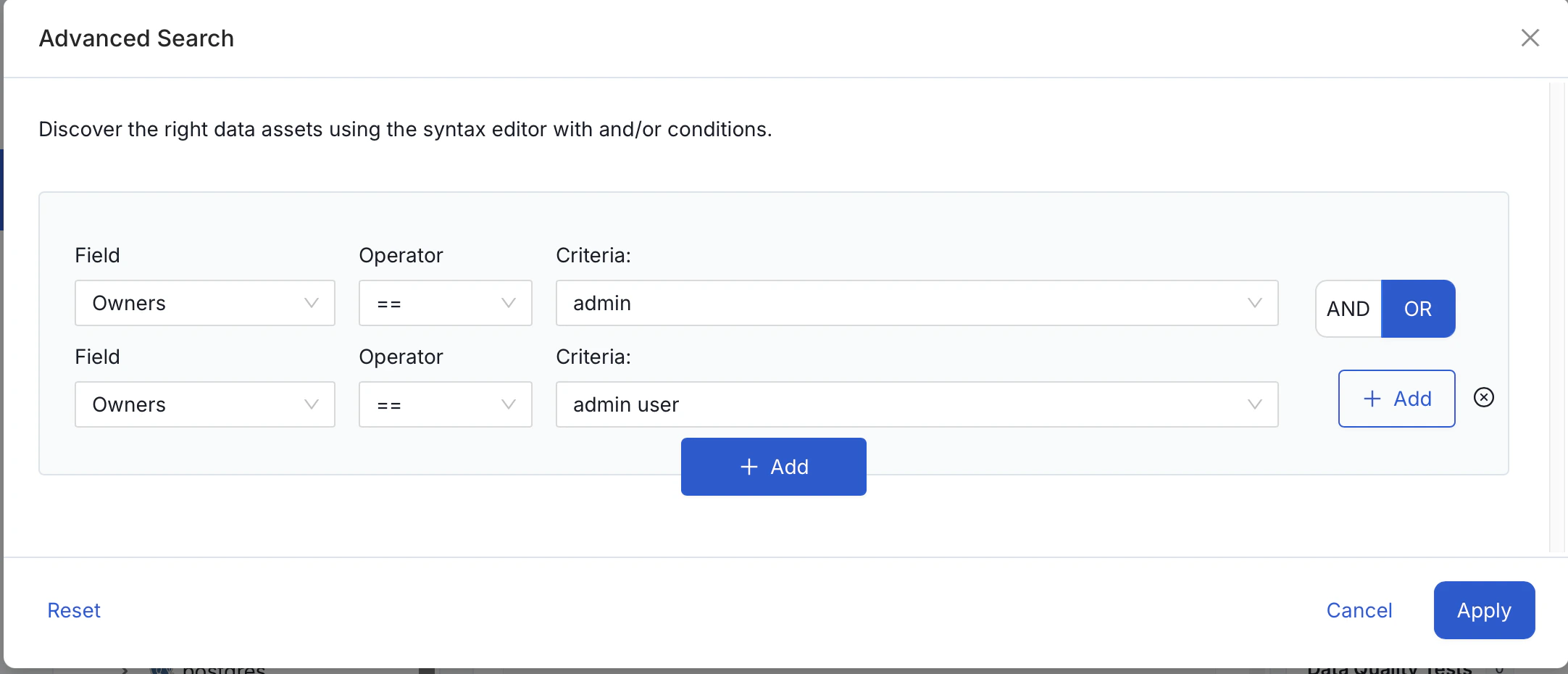
Click the Advanced Search icon and add the first condition group for the Owner filter:
- Set Field to
Owner, Operator to==, and Criteria toadmin. - Click Add within the same group to add a second condition. Set Field to
Owner, Operator to==, and Criteria toadmin user. - Set the group operator to OR so assets owned by either person are matched.
- Set Field to
-
Click Add below the first condition group to create a second condition group for the Name filter. Set Field to
Name, Operator toNot contains, and Criteria todim.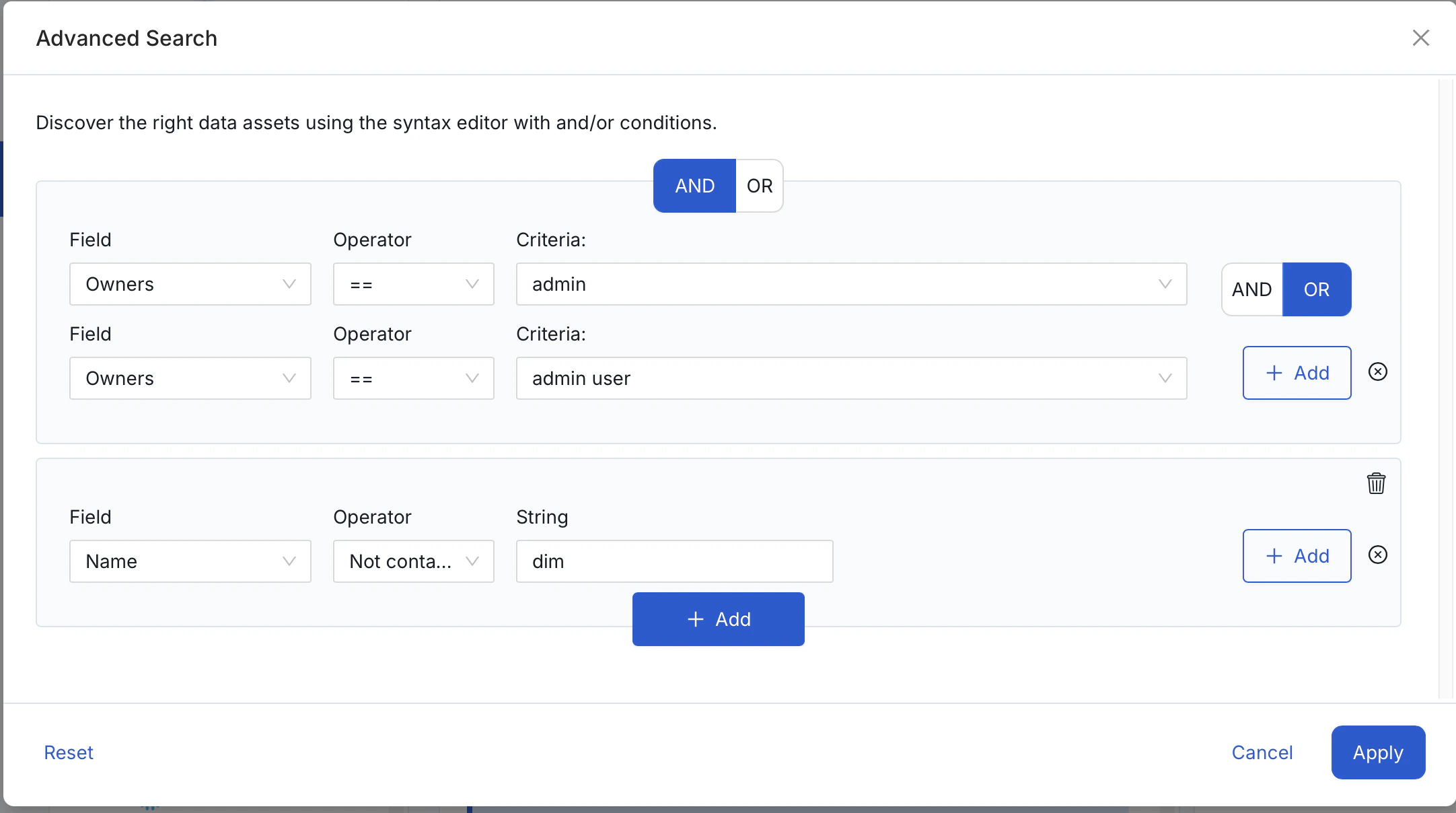
- Set the group operator between the two groups to AND so both conditions must be fulfilled.
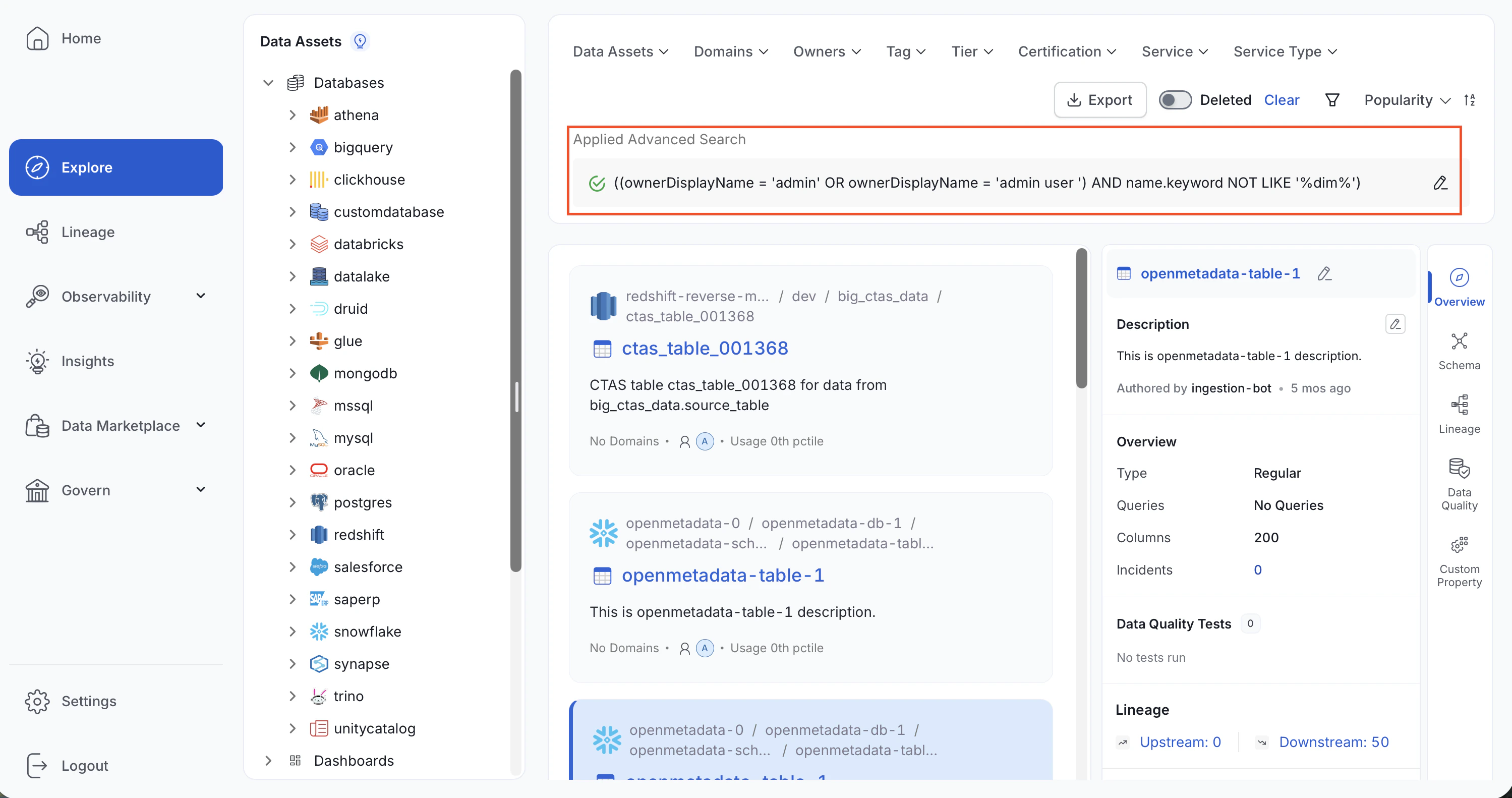
- Select Apply.